SUPPORT — POSTURE MONITOR
Real-time, on-device posture tracking that catches the slouch before your neck does. Your phone's camera watches your face and shoulders — nothing else sees it.
Free plan included · No account required
A closer look
This app is not a medical device. It is not intended to diagnose, treat, or prevent any condition. If you have health concerns, please consult a medical professional.
Basic usage
-
Place your phone
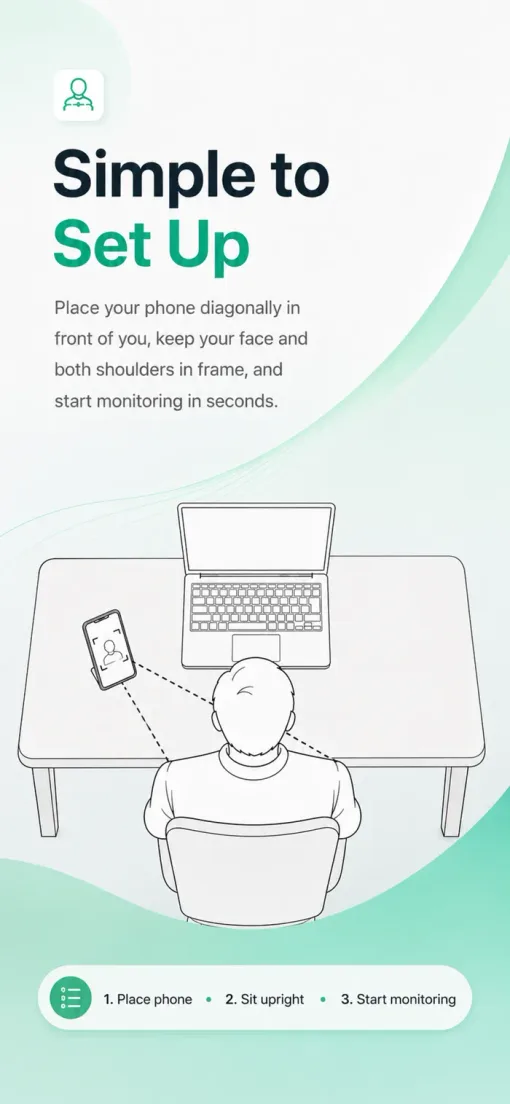
Place your phone diagonally in front of either the left or right side of your body. Adjust it so your face and both shoulders are near the center of the frame.
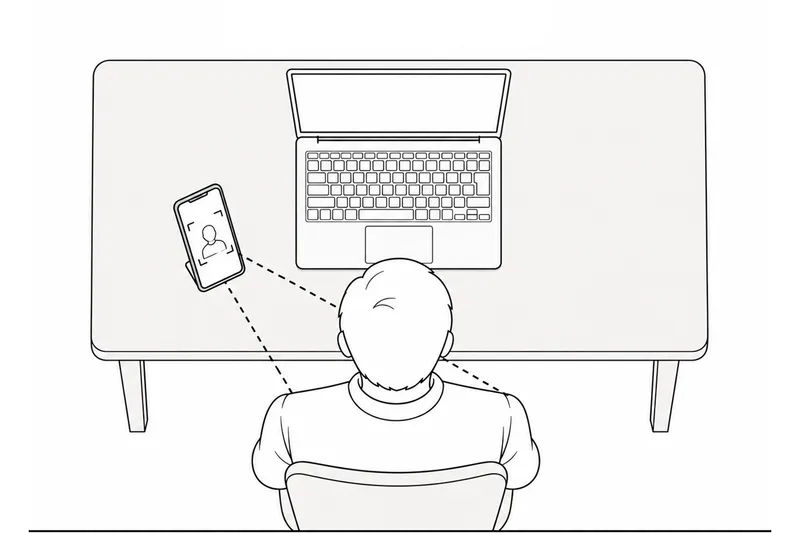
Diagonal placement, face and shoulders centered 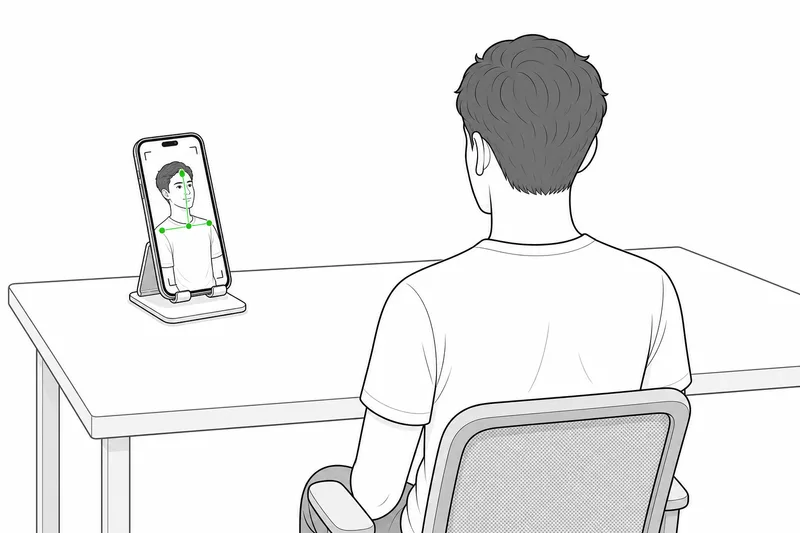
Calibrate in your usual working posture -
Calibrate your correct posture
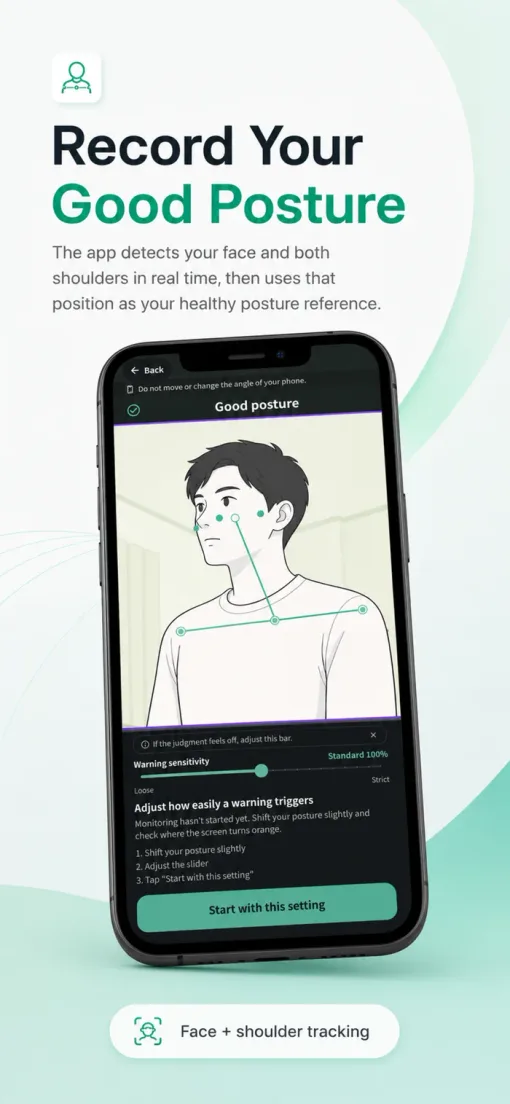
Sit up straight in your usual working posture and hold still. After a few seconds, that posture is recorded as your reference.
-
Adjust how easily a warning triggers
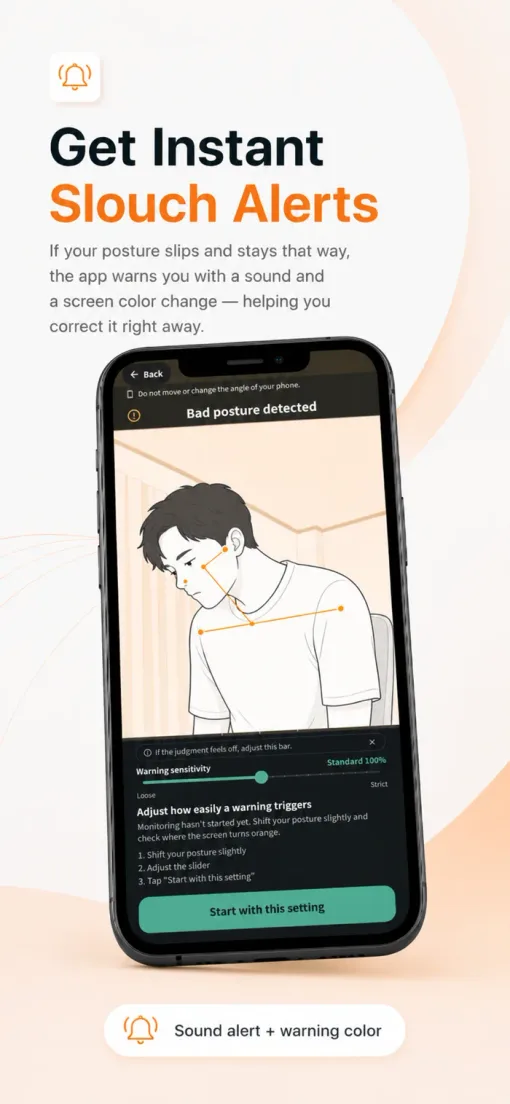
Shift your posture slightly and watch where the screen turns orange, using the bar to adjust how easily a warning triggers.
-
Start monitoring
Once you're set up, start monitoring. If your posture stays slipped for a while, the app alerts you with sound and a screen color change.
-
Don't move your phone or chair afterward
Moving your phone or chair after calibration throws off the reference it judges against. If you do move them, recalibrate.
Free plan vs. Posture Pro
Up to 60 minutes of monitoring per day.
No daily time limit on monitoring. Monthly and yearly plans grant identical access — no feature difference between them.
Purchases are auto-renewing subscriptions. You can cancel anytime.
Restoring a purchase: if your purchase isn't reflected after switching devices, open the Plan row in Settings and choose Restore purchases. You need to be signed in with the same Apple ID or Google account used for the original purchase.
Cancelling: cancel your subscription from the App Store's subscription management screen. You keep Posture Pro access until the end of the period you've already paid for.
Frequently asked questions
Can this actually fix slouching?
The app isn't a physical brace that holds your body in place. It watches your posture in real time through the camera and alerts you with sound and a screen color change when it slips, helping you build the habit of noticing and correcting it yourself. Consistent use tends to sharpen your own sense of when your posture has slipped.
How is this different from a posture corrector belt or brace?
It doesn't attach to your body at all. It only watches your face and shoulder position while you're in front of the camera and alerts you when posture slips, which makes it a fit for time spent at a desk, computer, or phone rather than all-day wear.
Can I use it during remote work or online classes?
Yes. Just place your phone next to your laptop and it can monitor your posture while you're in a video call or online class. No special setup or extra hardware is required.
What are the effects of poor posture?
Prolonged slouching or rounded shoulders is commonly associated with neck and shoulder tension, eye strain, and reduced concentration. This app doesn't diagnose or treat any condition, but it can help you notice posture slipping sooner.
The camera won't start
Check that Posture Monitoring App has camera access permission in your device settings, then restart the app.
It says it can't detect both shoulders
Place your phone diagonally in front of either the left or right side of your body, with your face and both shoulders near the center of the frame. Move a little farther away if you're too close — low light can also make detection unstable.
I get too many warnings, or too few
Use the bar always shown on the Monitoring screen to adjust how easily a warning triggers. If you've moved your phone or chair, the reference it judges against is off — try recalibrating.
No alarm sound plays
Check that the alarm sound is turned on from the Home screen or the Monitoring screen's Settings. Also check that the volume isn't set to 0, and check your device's own volume and silent mode.
I want to restore my Posture Pro purchase
Open the Plan row in Settings and choose Restore purchases. You need to be signed in with the same Apple ID or Google account used for the original purchase.
I want to cancel my subscription
Cancel from the App Store's subscription management screen. The app can't cancel it directly, but Settings can open that management screen for you.
Does monitoring keep working if I close the app?
No. Posture Monitoring App only works while the app is open and in the foreground. Background monitoring is not supported.
Still stuck?
Include your device model, OS version, app version, and what's happening — it helps us resolve things faster.
Open contact form